Setting up the In-Game Overlays
Setting Up the New In-Game HUD / Overlay for Pits n’ Giggles
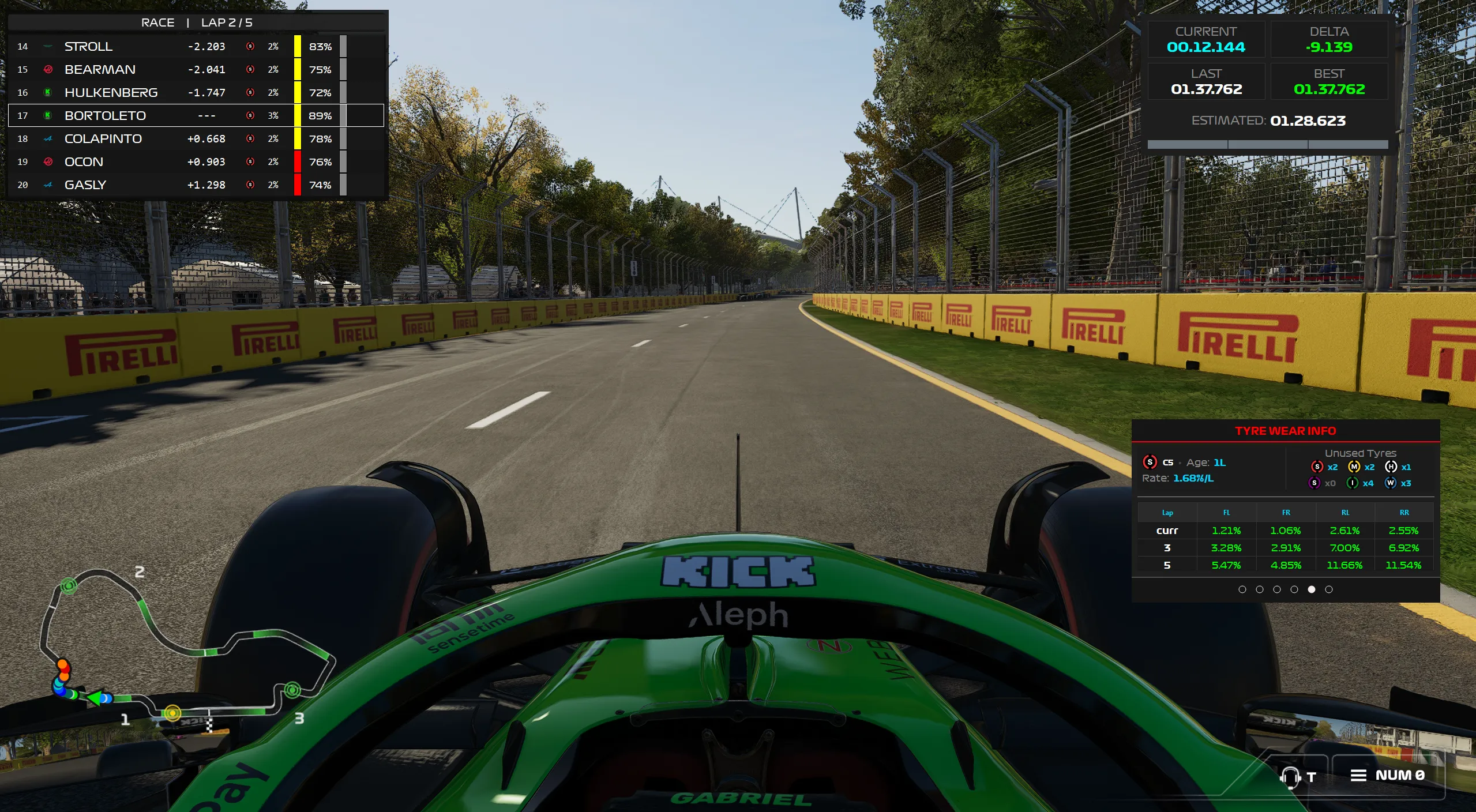
The latest update to Pits n’ Giggles introduces a full in-game HUD / overlay system, built for F1 25 and the wider sim racing community. These overlays provide clearer visibility, more accurate telemetry, and race-engineer-grade insights-all directly on top of your game.
- Starting from v3.0.0, Pits n’ Giggles now has in game HUD/overlays.
- These can be used to further enhance the data you receive while racing, on the same screen!
Prerequisites
- F1 23+ installed with telemetry enabled and Pits n’ Giggles setup.
- A windows PC. The Overlays are supported only on windows, given that the game is supported only on windows
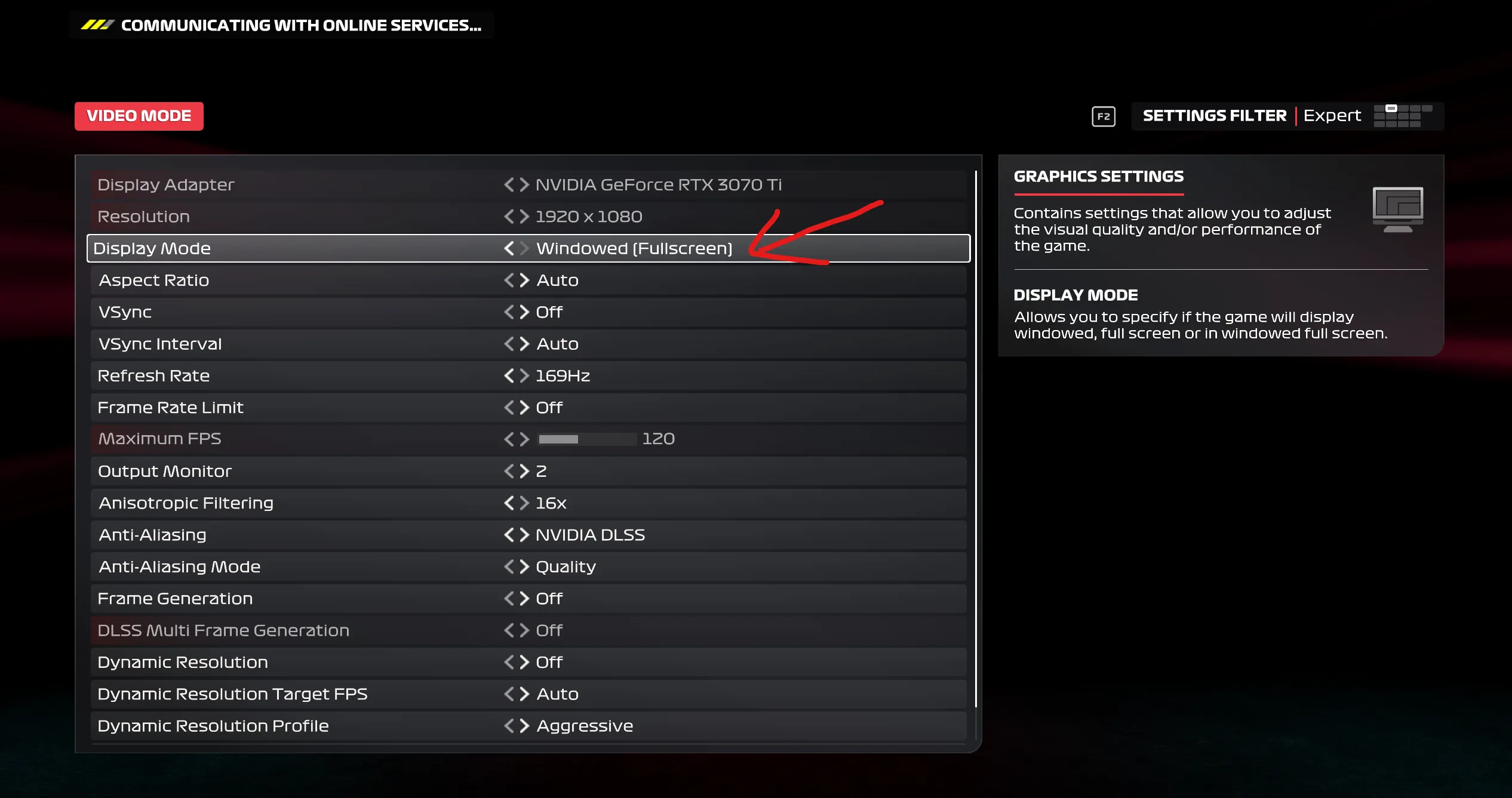
- The game running in windowed (full screen) mode. This is important for any overlay application to work!
- Settings -> Graphics Settings -> Video Mode
Configuring Overlay Position & Size
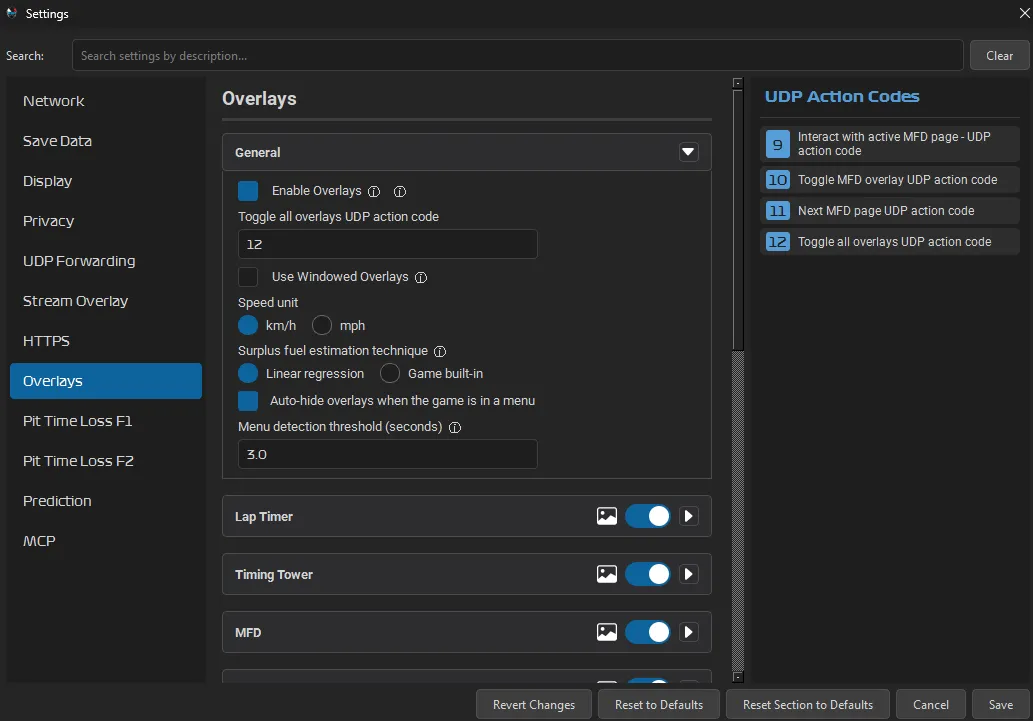
The HUD is disabled by default. Enable it in “Settings -> Overlays -> Enable Overlays”
Every overlay appears as a floating, always-on-top window.
Unlock Mode
- Click Unlock in the app.
- Drag each overlay to position it.
- Resize them to your preference.
Lock Mode
Click Lock when done to save your preferences This activates click-through mode so the HUD never interferes with gameplay.
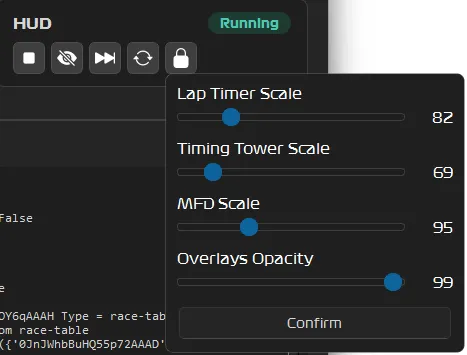
Your layout automatically saves and loads at startup.
Understanding the Overlays
Below is an overview of each overlay, what it shows, and how to interpret the data during racing.
Timing Tower Overlay
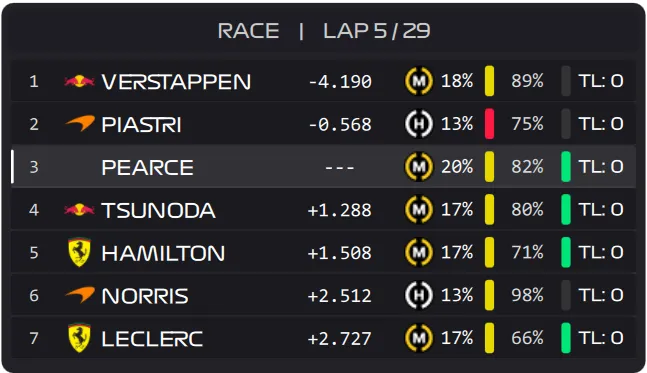
A broadcast-style timing tower inspired by F1 coverage.
Displays:
- Position
- Driver & team
- Delta to car ahead/behind
- Tyre compound & Max tyre wear %
- ERS info
- The bar represents the ERS deploy models.
- Gray = None
- Yellow = Medium
- Green = Hotlap
- Red = overtake
- ERS Battery level %
- The bar represents the ERS deploy models.
- DRS state
- The bar repesents one of two states
- Green = DRS available/activated
- Gray = DRS unavailable/not activated
- The bar repesents one of two states
- Penalties
- Time and DT pens
NOTE: The number of rows to be displayed on the table can be configured from the settings menu
Lap Timer Overlay
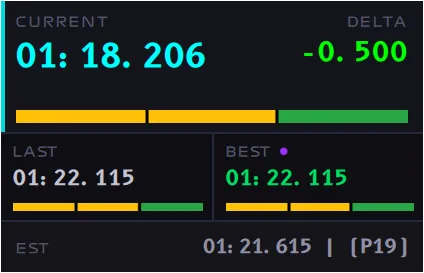
Live Delta & Estimated Lap Time
- The delta is not exported via UDP telemetry by the sim.
- Pits n’ Giggles estimates the live delta based on ongoing lap time and currrent track position.
- The fastest lap’s progress is tracked meticulously and the current lap time’s delta is estimated against this reference
Sector colour bars
- Same as what’s in the game, but it’s Dynamic.
- This means that the sector colour is constantly being re-evaluated.
- If you have a purple sector and then someone else sets a faster sector time, your sector will be demoted from Purple to Green
Dynamic Sector Colour System
Sectors can change from purple → green or green → yellow based on improvements-mirroring real-world timing behavior.
Interpretation:
- Green = personal best
- Purple = session best
- Mixed colours = inconsistency, traffic, or tyre degradation
Multi-Function Display (MFD)

The MFD is a multi-page telemetry and race engineering display that can be cycled through. By default, it begins in a compact/collapsed mode, to minimize screen space used
Lap Times Page
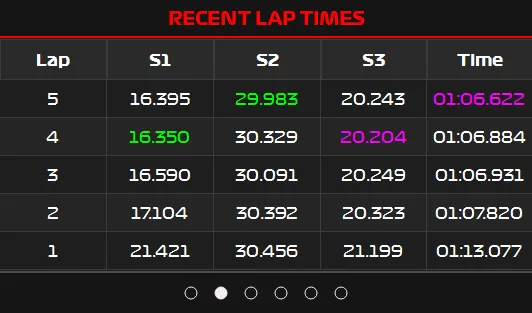
Shows the last five laps with sector detail.
Weather Forecast Page
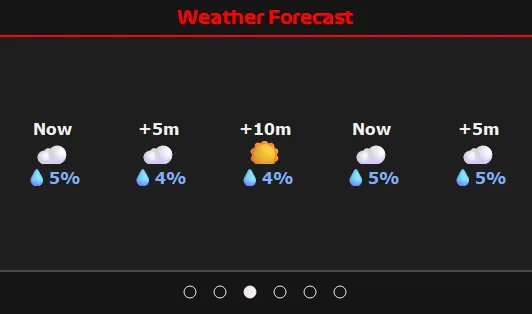
Displays upcoming weather forecast details for upto 1 hour
Fuel Info Page
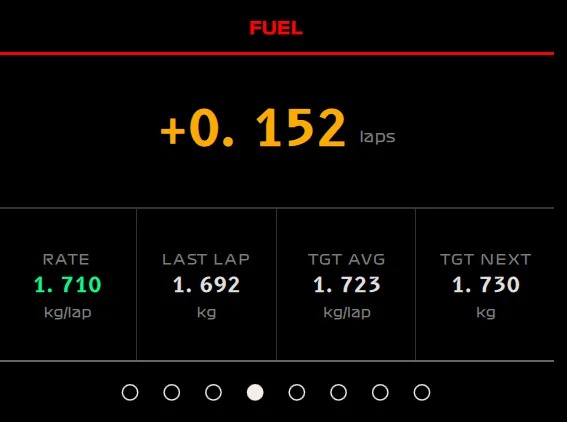
Shows:
- Last-lap consumption
- Average usage rate
- Target usage rate
- Target fuel consumption for next lap to meet target usage rate
- Surplus laps
NOTE:
- All these values are calculated in real time based on live consumption trends.
- The surplus number displayed here will update at the end of every lap and is NOT the same as the excess laps displayed in the game
- The game uses flat fuel burn rate and assumes everyone has the same style and consumption trends, regardless of car setup, which is simply not true.
Tyre Wear Page
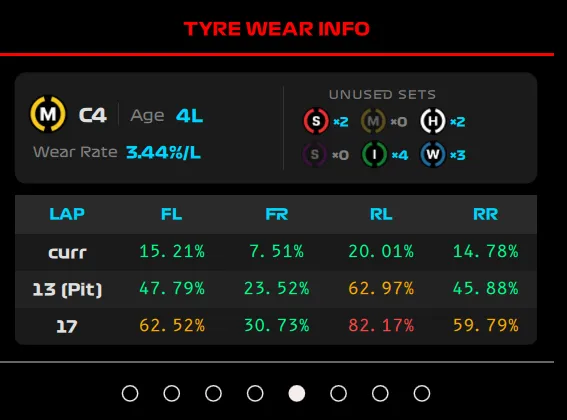
Displays:
- Current tyre wear, age and wear rate
- Wear percentages
- Unused tyre sets available
- Predicted future wear, based on live/real-time trends
Great for stint planning and avoiding late-race dropoff.
Pit Rejoin Prediction
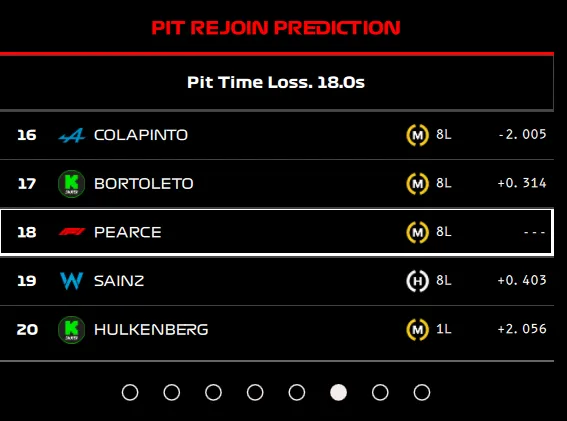
Predicts and displays where you’d rejoin on track if you were to pit right now.
- Predicted rejoin position
- Gaps to nearby cars
- Whether you’ll exit into traffic or clean air
This is predicted using the Pit Time Loss that can be configured in settings for each track. Thanks to adriaN for sharing their findings!
Tyre Sets
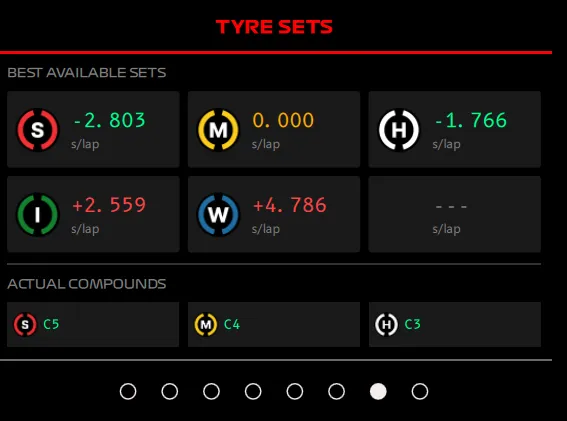
Displays the lap time delta of the freshest tyre set of a given compound against the current fitted tyre set!
MFD Customization
- Enable/disable specific HUD overlays
- Configure number of rows in the timing tower
- Customize the MFD
- enable/disable specific pages
- reorder the MFD pages
- Set the opacity of the overlays
Track Radar Overlay
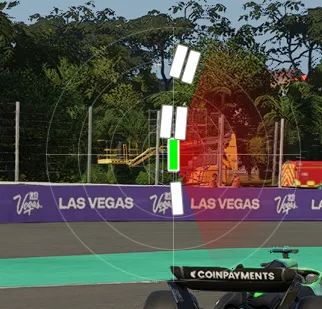
- Improve your wheel-to-wheel combat cleanliness using the track radar!
- Enable it in the overlay settings and you’re good to go!
Input telemetry overlay
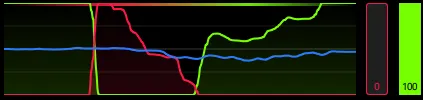
- Visualize your throttle/brake/steering inputs in real-time
- Enable it and you’re good to go!
- The buffer duration of the input graph can also be configured from Settings -> Overlays -> Input telemetry overlay buffer duration (sec)
Controlling the overlays
The overlays can be controlled while in game by using the game’s UDP action code feature. Currently, two types of actions are supported:
- Show/Hide overlays
- MFD Cycle Page
Setup in Pits n’ Giggles [OPTIONAL]
Customize the UDP action codes based on your preferences The options can be found in Settings -> Overlays
Remember these numbers!
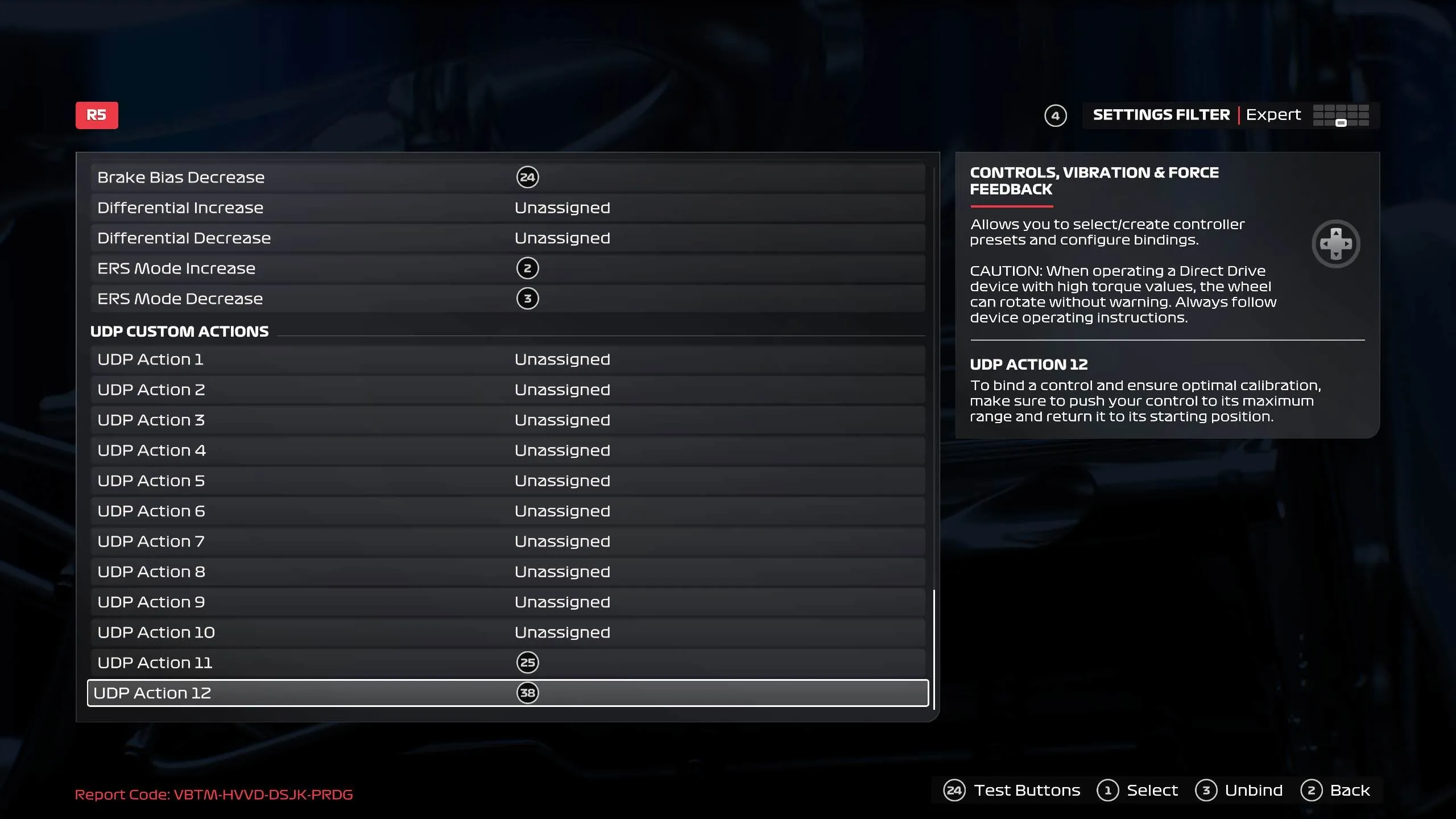
Setup in the game
- In the game, edit the controls for your input device (be it wheel, controller or keyboard)
- Scroll down to the absolute bottom and edit the corresponding UDP action codes to buttons of your choice.
- Save the settings and you’re done!
Further reading!
Here’s how tyre wear and fuel predictions work in Pits n’ Giggles!