Frequently Asked Questions
Everything you need to get Pits n' Giggles up and running. Can't find what you're looking for? Check the blog for in-depth guides.
Getting Started
4Pits n’ Giggles is a single standalone executable - no installer required.
- Go to the Releases page and download the latest version for your platform.
- Extract the zip file to a folder of your choice (It is recommended to create a dedicated folder for Pits n’ Giggles).
- Run the executable directly - no install steps needed.
First time?
Follow the Getting Started Guide for tips on how to set up and use Pits n’ Giggles for the first time.
Pits n’ Giggles supports the following EA Sports F1 games:
| Game | Status |
|---|---|
| F1 25 (2026 Season Pack) | Supported |
| F1 25 | Supported |
| F1 24 | Supported |
| F1 23 | Supported |
| F1 22 and older | Not Supported |
- The F1 games send out telemetry data over UDP. Modern operating systems allow only one application to receive data at a time on a given port.
- When Pits n’ Giggles is running and listening for telemetry, it takes exclusive access to the UDP data stream.
- In order to use Pits n’ Giggles along with other applications that read telemetry (like wheel software), you need to set up UDP forwarding to share the data stream.
UDP Forwarding
When this feature is configured, Pits n’ Giggles will receive the telemetry data and then forward it to another port that your wheel software can listen to. This allows both Pits n’ Giggles and your wheel software to receive the same telemetry data simultaneously. Learn how to set up UDP forwarding in the Getting Started Guide.
Pits n’ Giggles is free and open-source, distributed directly from this website rather than through the Microsoft Store or Mac App Store. Since it isn’t signed with a paid code-signing certificate, Windows and Mac will show a security warning the first time you run it. This is expected for indie/open-source apps and doesn’t mean the app is unsafe.
When you double-click the executable, you’ll see a blue “Windows protected your PC” dialog from Microsoft Defender SmartScreen.
- Click More info
- Click Run anyway
You only need to do this once per downloaded version - subsequent launches of the same file won’t show the prompt again.
If you double-click the app and see a message saying it “cannot be opened because it is from an unidentified developer” (or “Apple could not verify…“):
- Click Cancel
- Open System Settings → Privacy & Security, scroll to the Security section, and you’ll see a message about the app being blocked
- Click Open Anyway, then confirm Open in the dialog that appears
Alternatively, right-click (or Control-click) the app → Open, then confirm Open in the dialog - this bypasses Gatekeeper without needing to visit System Settings.
First time?
Follow the Getting Started Guide for tips on how to set up and use Pits n’ Giggles for the first time.
OBS Integration
1Pits n’ Giggles serves overlay pages over a local HTTP server. You add them to OBS as a Browser Source.
Steps:
- Launch Pits n’ Giggles and start a session (telemetry must be connected)
- In OBS, click + in the Sources panel → Browser
- Name the source (e.g. “PNG Tyres”) and click OK
- Set the URL to the overlay address shown in the Pits n’ Giggles UI (e.g.
http://localhost:5000/tyre-overlay) - Set Width and Height to match your stream resolution
- Tick Refresh browser when scene becomes active for reliable updates
- Click OK
Positioning the overlay:
- Right-click the source → Transform → Edit Transform to set exact position and size
- Use Alt + drag on the source edges to crop if needed
Multiple overlays
You can add multiple browser sources - one per overlay type (tyres, fuel, lap times, etc.). Each runs independently on its own URL.
Overlays
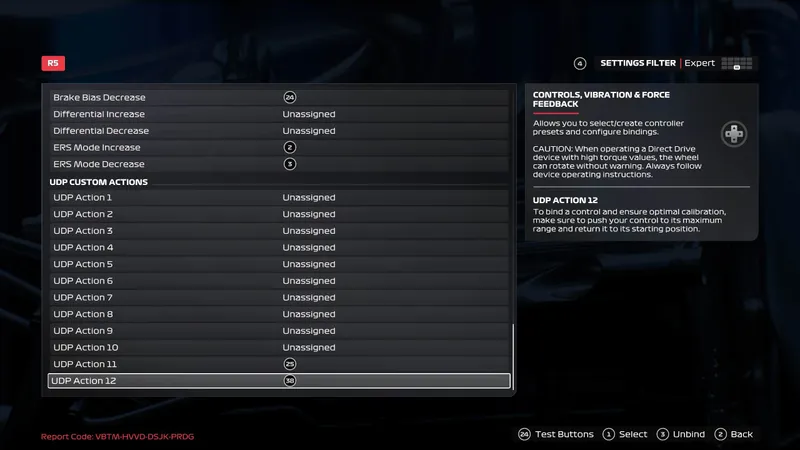
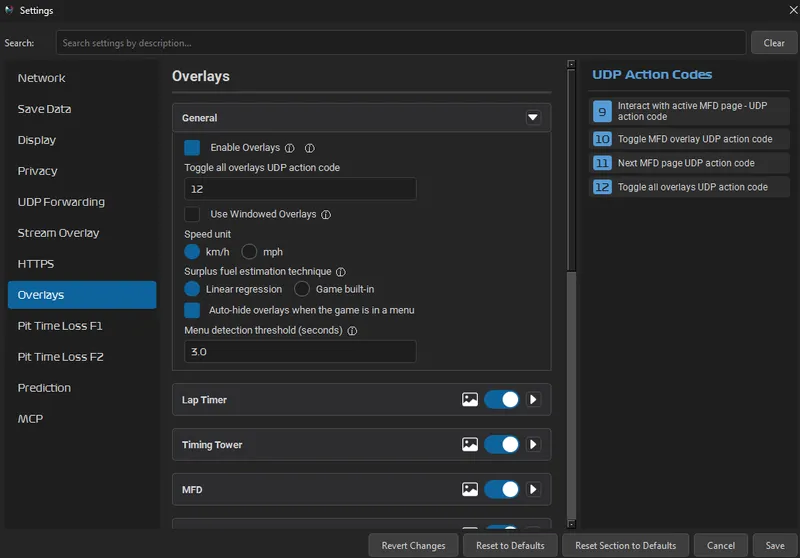
2You can interact with Pits n’ Giggles from your input device during a session by using the game’s UDP action codes. Please refer to the Overlays Setup Guide for more details
Ensure you are the using the same UDP action code number as configured in your game’s controls settings
Example
If you have UDP action code 12 set in game
Ensure you have the same UDP action code 12 set in Pits n’ Giggles Settings -> Overlays
Power Users
1Pits n’ Giggles engineer view is a web based application. This means if you and your friend are on the same network, they can access the engineer view from their own device.
Remote Race Engineering Guide
- using Radmin [RECOMMENDED]
- using Hamachi
Troubleshooting
2Usually this happens because UDP telemetry output is disabled in the game, or the connection is blocked by a firewall.
First, check the game settings:
- Open F1 game settings → Telemetry Settings
- Set UDP Telemetry to
On - Set UDP Broadcast Mode to
Off - Set the UDP IP Address to the IP of the machine running Pits n’ Giggles
- Set UDP Port to
20777(default)
Windows Firewall:
- Open Windows Security → Firewall & network protection → Allow an app through firewall
- Click Change settings → Allow another app
- Browse to the Pits n’ Giggles executable and add it
- Ensure both Private and Public network checkboxes are ticked
Alternatively, you can temporarily disable the firewall to test if it’s the cause.
macOS Network Permissions:
- Open System Settings → Privacy & Security → Local Network
- Ensure Pits n’ Giggles has permission to access the local network
- If the app doesn’t appear, launch it first and then check again
After making changes, restart the game and relaunch Pits n’ Giggles.
Pits n’ Giggles listens on UDP port 20777 (default) for telemetry packets from your F1 game. If your firewall blocks this port, no data will arrive.
Option A - Allow the app (recommended):
- Open Windows Security → Firewall & network protection
- Click Allow an app through firewall
- Click Change settings → Allow another app…
- Browse to your Pits n’ Giggles
.exeand click Add - Tick both Private and Public columns
Option B - Open the port manually:
Run this in an elevated PowerShell:
New-NetFirewallRule -DisplayName "Pits n Giggles UDP" -Direction Inbound -Protocol UDP -LocalPort 20777 -Action Allow
macOS does not block incoming UDP ports by default. If you have a third-party firewall (e.g. Little Snitch), add a rule to allow inbound UDP on port 20777 for the Pits n’ Giggles process.
For the built-in macOS firewall:
- System Settings → Network → Firewall
- Click Options… and add Pits n’ Giggles to the allowed apps list
Use ufw or iptables to open the port:
# ufw
sudo ufw allow 20777/udp

# iptables
sudo iptables -A INPUT -p udp --dport 20777 -j ACCEPT
Running game on a different machine?
If F1 runs on a separate PC, make sure the firewall rule applies on the Pits n’ Giggles machine, not the gaming machine. The game sends packets; Pits n’ Giggles receives them.